
Multi-Factor Authentication (MFA)
Set up and use MFA to protect your CPDForge AI account.
CPDForge AI supports: Microsoft Authenticator, Google Authenticator, Apple Passwords, 1Password, Bitwarden, and any TOTP-compatible authenticator app.
What is MFA?
Multi-Factor Authentication (MFA) adds an extra layer of protection to your CPDForge AI account. When you log in, you provide two pieces of information:
- Your password — something you know.
- A one-time code — something you have, generated by an app on your phone.
Even if someone discovers your password, they cannot access your account without the one-time code.
Why CPDForge AI Uses MFA
- Protects your account even if your password is stolen or guessed.
- Keeps your organisation's training records secure.
- Safeguards learner data and personal information.
- Reduces the risk of unauthorised access.
- Meets modern security expectations for professional platforms.
Supported Authenticator Apps
CPDForge AI works with any standard authenticator app that supports time-based one-time passwords (TOTP).
| App | Platform | QR Code | Manual Key |
|---|---|---|---|
| Microsoft AuthenticatorRecommended | iOS, Android | ||
| Google Authenticator | iOS, Android | ||
| Apple Passwords | iOS, iPadOS, macOS | Limited | |
| 1Password | iOS, Android, Windows, macOS | ||
| Bitwarden | All platforms |
Which MFA App Should I Use?
Recommended for most organisations
Microsoft Authenticator is the most common choice among CPDForge customers.
- Works well with Microsoft 365
- Free on iOS and Android
- Simple QR code setup
Not sure?
Google Authenticator works on any phone and requires no account to set up.
Using an iPhone?
Apple Passwords is built into iPhone and iPad and can be used instead of installing a separate authenticator app. Open Settings, then Passwords, to set it up.
How To Enable MFA
- Log in to your CPDForge AI account.
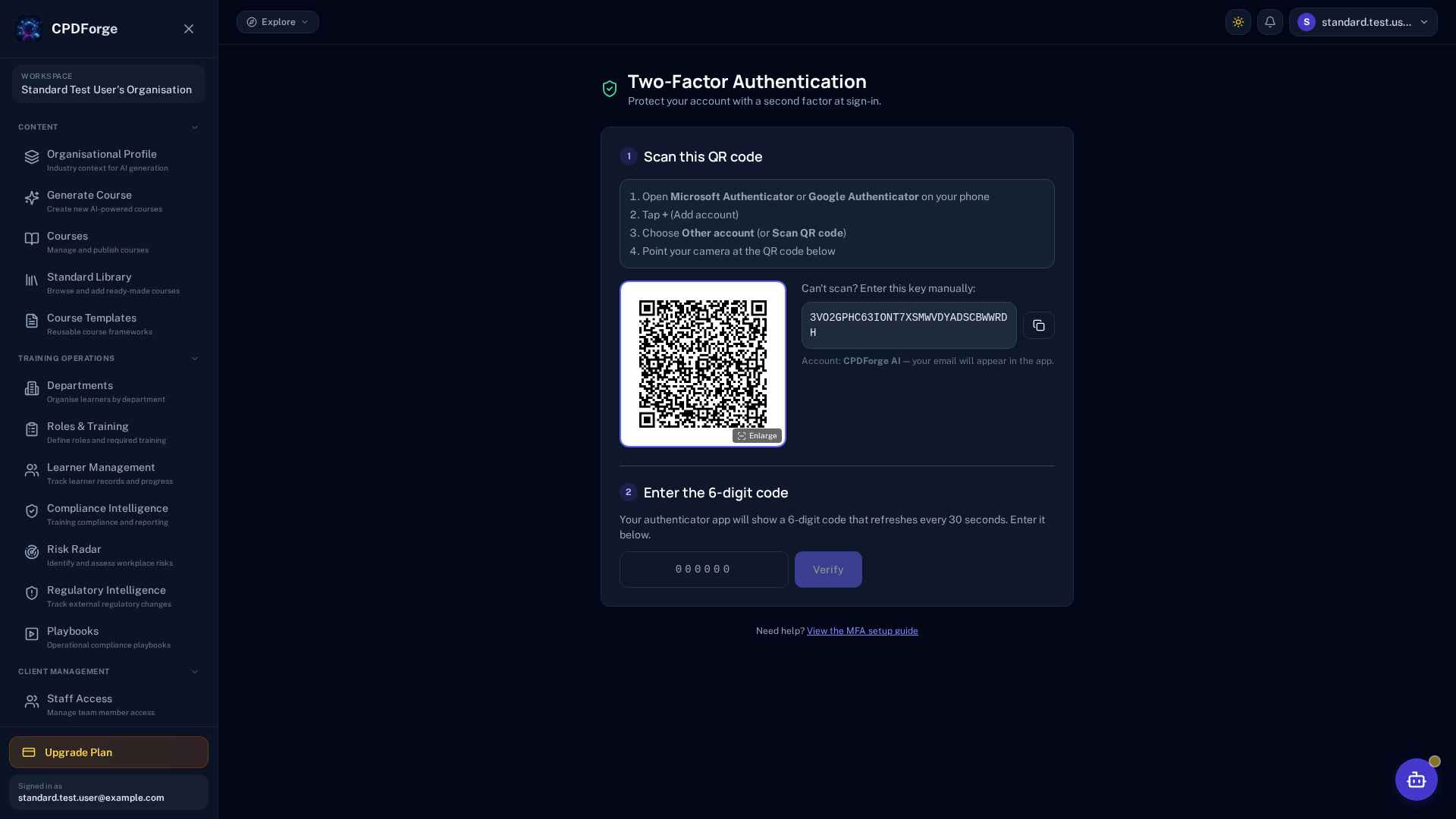
- Click the Enable MFA button in the banner at the top of the dashboard, or navigate to the Two-Factor Authentication page.
- Click Enable MFA.
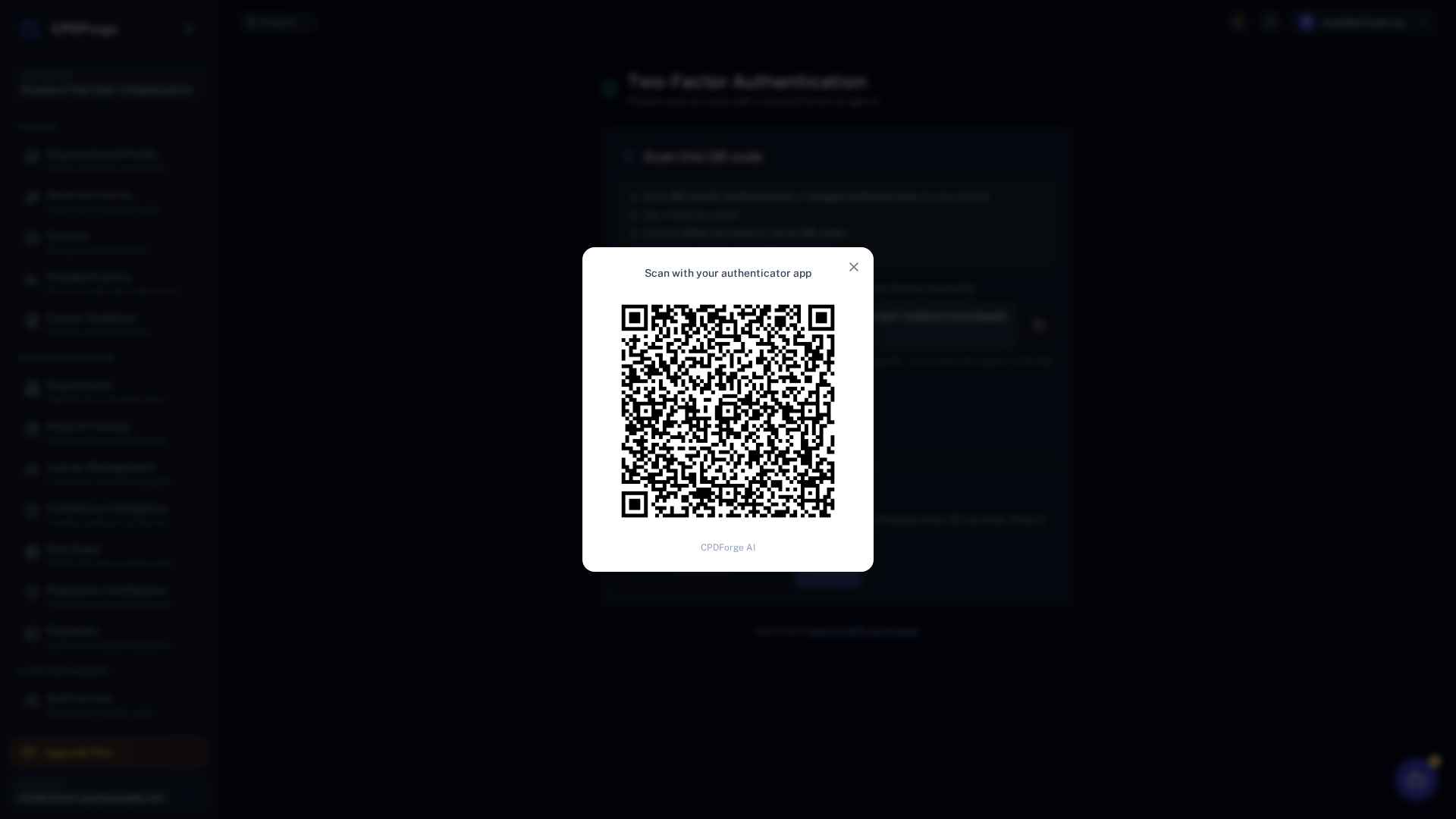
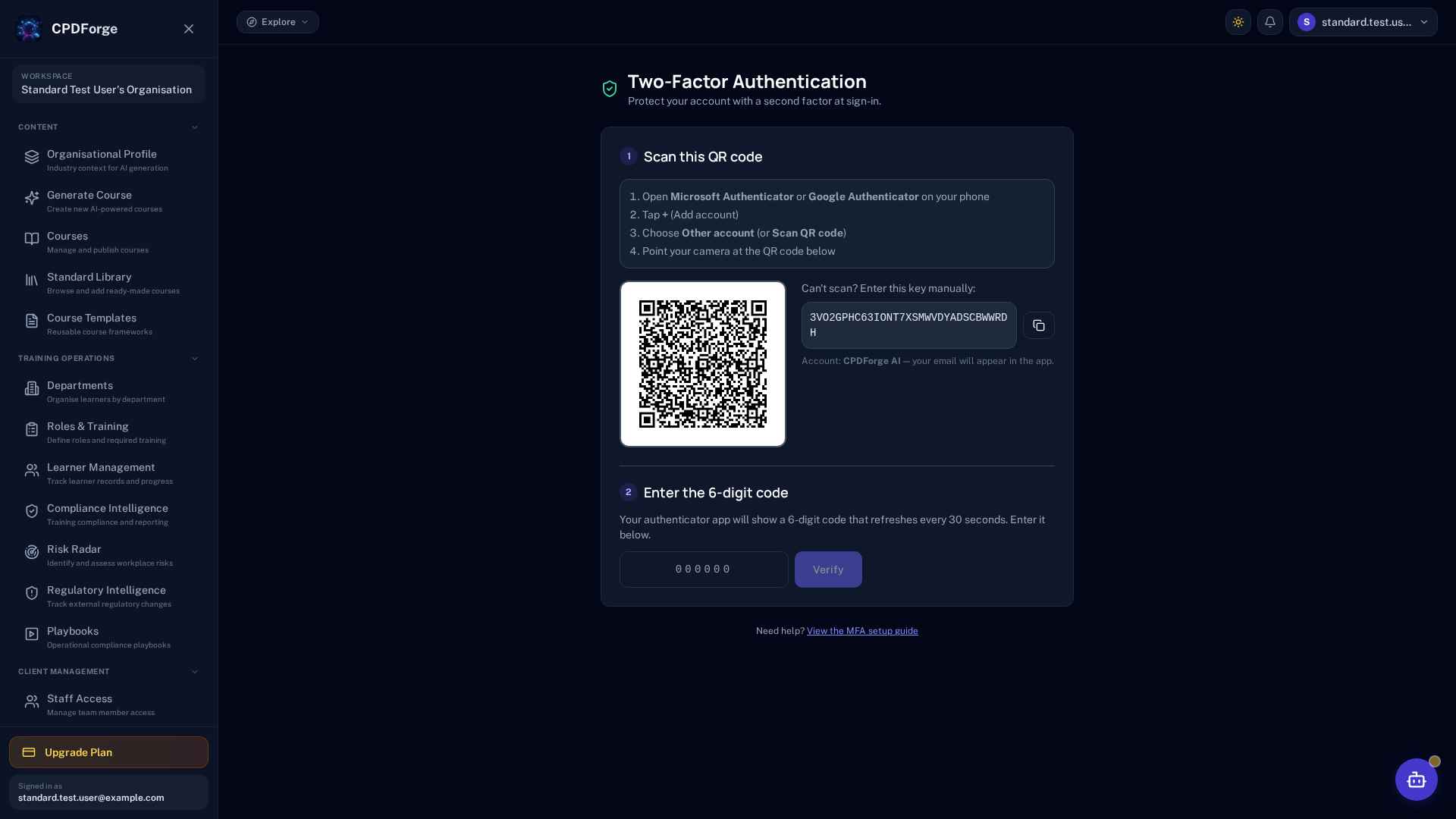
- A QR code will appear. Open your authenticator app and scan it. (If you cannot scan, see Manual Setup Key.)
- Your authenticator app will show a 6-digit code. Enter it into the verification field.
- Click Verify to complete setup.
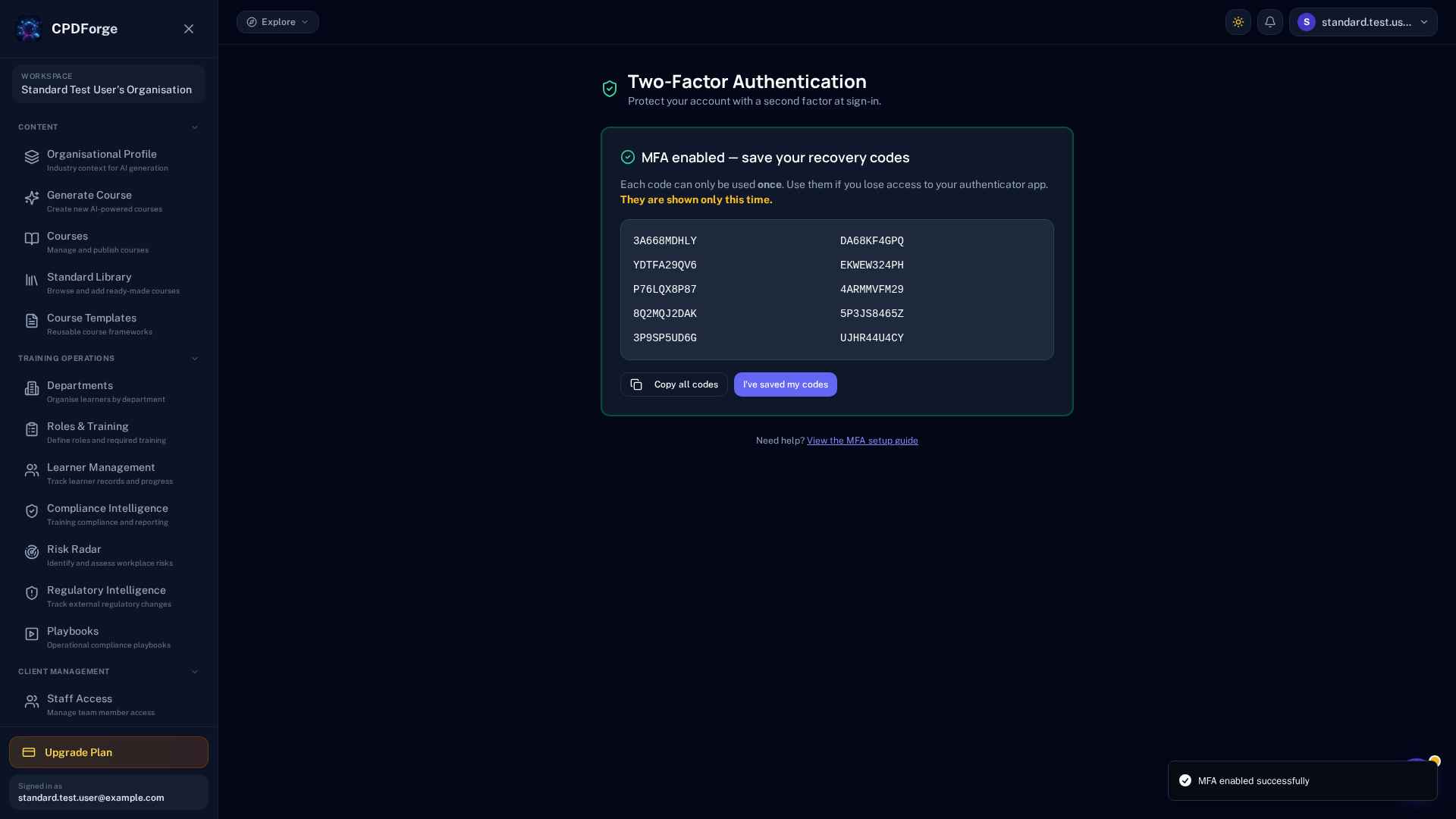
- Save the recovery codes shown. They are displayed only once. See Recovery Codes.
- MFA is now active. From your next login, you will need your password and a 6-digit code.
Microsoft Authenticator Setup
Step 1 — Install the App
- Open the App Store (iPhone) or Google Play Store (Android).
- Search for Microsoft Authenticator.
- Tap Install and open the app.
Step 2 — Add Your CPDForge AI Account
- In the app, tap the + icon to add a new account.
- Select Other account (Google, Facebook, etc.).
- The app will open the camera to scan a QR code.
Step 3 — Scan and Verify
- Point your phone at the QR code on the CPDForge AI screen.
- Microsoft Authenticator will add CPDForge AI to your account list.
- Enter the 6-digit code shown in the app into CPDForge AI.
- Click Verify. MFA is now active.
Google Authenticator Setup
Step 1 — Install the App
- Open the App Store (iPhone) or Google Play Store (Android).
- Search for Google Authenticator.
- Tap Install and open the app.
Step 2 — Add Your CPDForge AI Account
- In Google Authenticator, tap the + icon at the bottom.
- Select Scan a QR code.
Step 3 — Scan and Verify
- Point your phone at the QR code on the CPDForge AI screen.
- Google Authenticator will add CPDForge AI automatically.
- Enter the 6-digit code into CPDForge AI and click Verify.
Apple Passwords Setup
Apple Passwords is built into iPhones, iPads, and Macs. There is nothing to download. It also supports auto-fill in Safari.
On iPhone or iPad
- Open Settings and tap Passwords.
- Authenticate with Face ID, Touch ID, or your passcode.
- Find your CPDForge AI entry (or tap + to add one).
- Tap Set Up Verification Code.
- Select Scan QR Code and point your camera at the QR code on CPDForge AI.
- Return to CPDForge AI and enter the 6-digit code shown in Apple Passwords.
- Click Verify.
Auto-Fill Support
Once set up, Apple Passwords will offer to auto-fill your 6-digit code when you sign in through Safari. Tap the suggestion above the keyboard to insert it automatically.
Using the Manual Setup Key
If your device cannot scan a QR code — for example, because you are setting up the authenticator on the same device — you can add your account manually using the setup key displayed next to the QR code.
- On the CPDForge AI MFA setup screen, find the setup key displayed next to the QR code. Use the copy button to copy it.
- Open your authenticator app and choose Enter a setup key (or similar).
- Enter the following:
- Account name: CPDForge AI (or your email address)
- Key: Paste the setup key
- Type: Time-based (TOTP)
- Tap Add or Save.
- Enter the 6-digit code into CPDForge AI and click Verify.
Recovery Codes
When you enable MFA, you receive 10 single-use recovery codes. Each code works once. If you lose your phone or authenticator app, these are your backup to regain access.
How to store them securely
- Print them and store in a secure location.
- Save them in a secure password manager.
- Do not store them only on your phone.
- Do not store them in an email inbox or unprotected document.
Keep your recovery codes safe
Each code can only be used once. If you lose your codes and your authenticator app at the same time, contact CPDForge Support or your organisation administrator for assistance regaining access.
Getting new recovery codes
To generate fresh recovery codes: disable MFA from the Two-Factor Authentication page, then re-enable it. A new set of 10 codes will be generated during the setup process.
Signing In With MFA
Enter Email
Your registered email address
Enter Password
Your account password
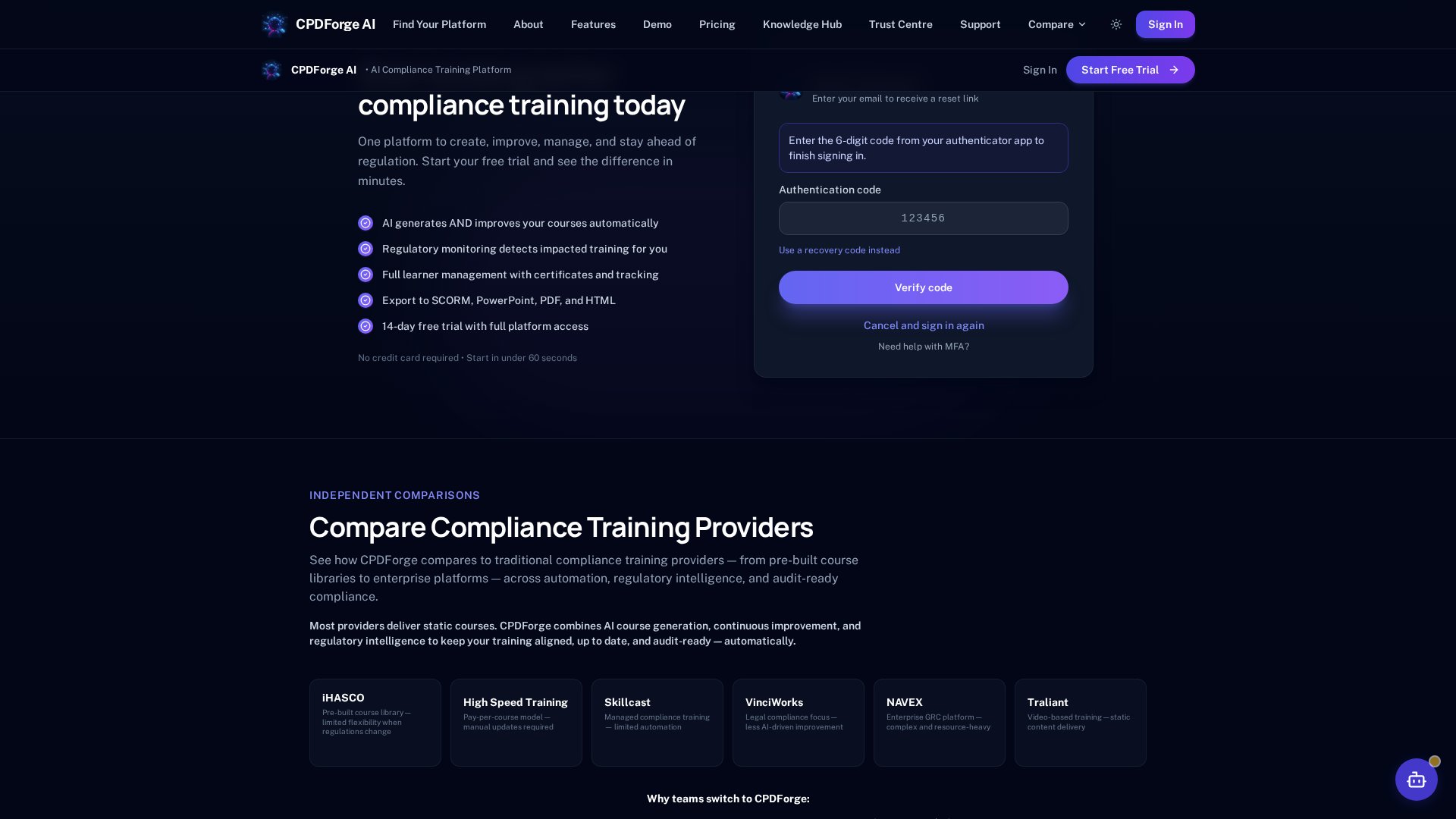
Enter MFA Code
6-digit code from your app
Access Granted
You're in — session active
Codes refresh every 30 seconds. If a code is about to expire, wait for the next one before entering it.
What If I Lose My Phone?
Before contacting support, check:
- Do you have your recovery codes saved in a password manager or printed?
- Can you still access your old device (even briefly)?
- Does your authenticator app sync across devices? (1Password does.)
Option 1 — Use a Recovery Code
On the MFA sign-in screen, click "Use a recovery code instead". Enter one of the recovery codes you saved. After signing in, set up MFA again with your new device.
Option 2 — Contact Support
If you do not have your recovery codes, contact CPDForge Support or your organisation administrator for assistance regaining access.
Re-enrolling MFA After Regaining Access
- Sign in to CPDForge AI.
- Go to the Two-Factor Authentication page.
- Click Enable MFA and follow the setup steps again.
- Save your new recovery codes in a secure place.
Frequently Asked Questions
Security Best Practices
- Never share your MFA code with anyone. CPDForge AI support will never ask for it.
- Never share your recovery codes. Treat them like a password.
- Use a strong, unique password for your CPDForge AI account.
- Keep your authenticator app up to date.
- Enable MFA as soon as your account is created.
- Lock your phone automatically after a short period of inactivity.
- If you suspect unauthorised access, change your password immediately and contact your administrator.
Need more help? Visit our Support page or contact your organisation administrator.
We value your privacy
We use cookies to analyse site usage and improve your experience. You can accept all cookies, use essential cookies only, or reject non-essential cookies entirely.